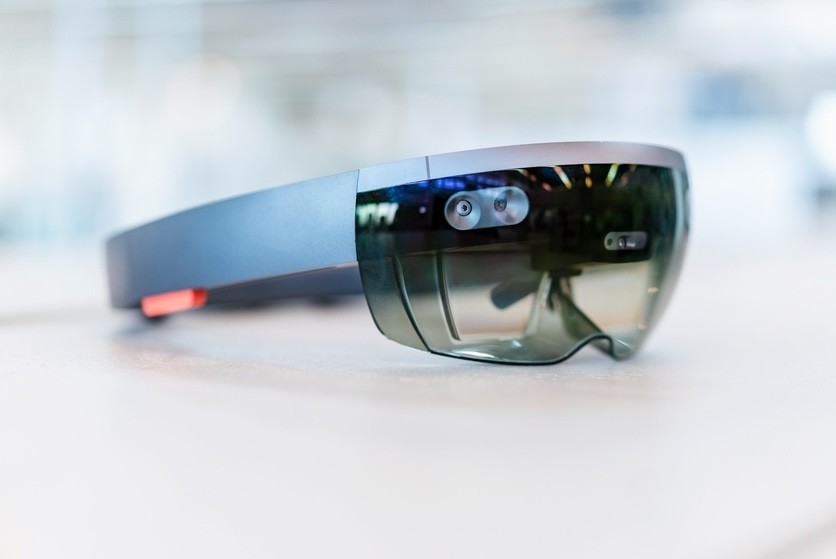
In order to port HoloLens app to Meta, using a detailed VR porting method will make the change impactful. Here are a few steps to take while doing so.
Step 1. Switch Your Unity Build Platform
If you're building for Meta Quest 3, switch your Unity build target to Android. Before deployment, ensure you know how to update Meta Quest 2 or Meta Quest 3 so your hardware is up to date. For PC-based Meta headsets, switch to Windows. Then, adjust texture compression and quality settings to work best for performance on the standalone device. This makes sure your building environment is set for the Meta platform you’re using.
Step 2. Enable OpenXR for Cross-Compatibility
First get the OpenXR Plugin from the Package Manager, to begin using OpenXR in Unity. Then, go to XR Plug-in Management and turn on OpenXR, choosing Meta as the active runtime. This ensures that it works with the wired and wireless Meta devices. To keep things running smoothly, turn off any other XR SDKs to avoid controller and input problems.
Step 3. Replace or Modify MRTK Components
To incorporate Meta support into your HoloLens project using the Mixed Reality Toolkit (MRTK), upgrade to MRTK 2.8 or MRTK3 for OpenXR (Source). Ensure compatibility with Meta Touch controllers by adjusting the input and interaction profiles. Disable any HoloLens-specific features. Prior to deployment, test the user experience with the MRTK Input Simulation Tool.
Step 4. Reconfigure Input and Interaction Models
To ensure a quality user experience, modify your application’s user interface (UI) and interactions to match Meta standards. Use controller buttons or hand tracking instead of gaze and air-tap gestures. Change anchored menus to floating canvases placed in the virtual reality area. Adhere to Meta design instructions for user comfort, paying attention to appropriate interaction distances and readability of text.
Step 5. Optimize Performance for Quest Hardware
To keep performance consistent on standalone Quest devices, adjust shader complexity, lighting, and render scale. Use tools like Meta Profiler or Unity Profiler to monitor frame rates and latency. Sideload the build using Meta Developer Hub or SideQuest, and test on Quest 2, 3, and Pro.
By adhering to these steps, you can port HoloLens app to Meta effectively.