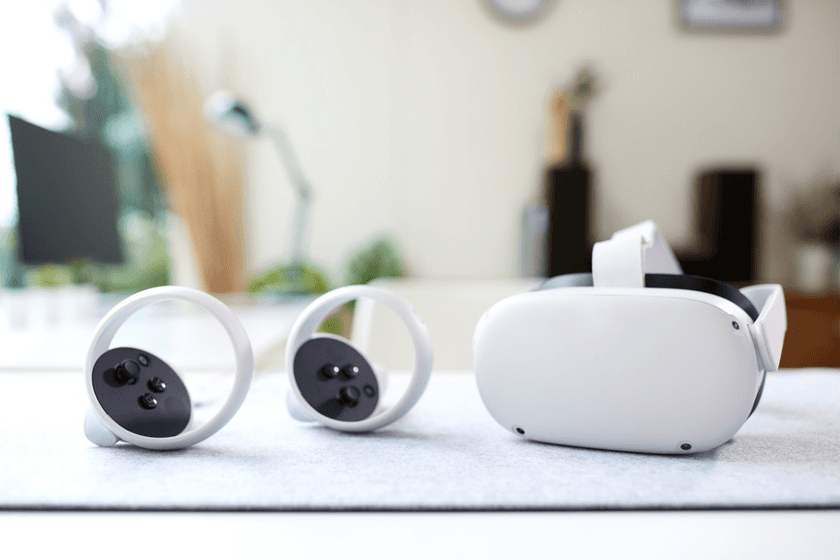
Keeping your Meta Quest updated is needed to ensure performance, security and getting the newest VR features. Knowing how to update, makes sure they work right, are compatible with the latest apps, and give you a great VR experience. If you’re wondering how to update Meta Quest, this blog covers both automatic and manual methods.
Why Keeping Your Meta Quest Devices Updated Matters
Meta Quest updates bring better performance, fresh features, and bug fixes for stability. Regular software updates mean better tracking, improved display, and stronger Wi-Fi. These updates also include improved cybersecurity and support for content made with Unity and Unreal Engine. Meta regularly updates its devices' software, keeping them working well with the newest VR tech. Whether you’re learning how to update Meta Quest for enterprise management or handling firmware updates, keeping the software current helps even the best VR headsets last longer and prevents problems from old software slowing things down.
Overview of Meta Quest Devices
Meta Quest devices have changed a lot to meet the needs of both regular users and businesses. Each headset has its own way of updating, processing data, and tracking movement, but they all need regular software updates to work their best. (Source).
Meta Quest 2
The Meta Quest 2 is one of the best for virtual reality, whether you're gaming or doing job training. It has a Snapdragon XR2 chip and 6DoF tracking. Updates usually make hand-tracking more exact, the user interface runs more smoothly, and the Guardian system is better at keeping you inside your play area. For those specifically searching how to update Meta Quest 2, the headset updates easily over Wi-Fi and downloads updates automatically when on standby, so you don't have do much.
Meta Quest 3
The Meta Quest 3 has mixed reality, better resolution, and improved passthrough. Updates improve its depth sensing and color passthrough for XR. Many updates refine system for apps using Meta’s new SDKs. When looking at the Meta Quest 3 vs Apple Vision Pro or other such headsets, the Meta Quest is a good choice.
Meta Quest Pro
The Meta Quest Pro was made for business use. It had good tracking sensors, plus face and eye tracking. Businesses could use features like managing the software from afar and setting it up for many users. This was good for VR like training, design work, and simulations. While it had its benefits, the Meta Quest Pro was discontinued and is no longer available for purchase.
Keeping your devices up to date with system and app updates is important. It helps make sure everything runs well and gives you the best user experience.
How to Automatically Update Meta Quest Devices
To keep your Meta Quest headset up-to-date, automatic updates are the easiest route. If you’re looking for how to update Meta Quest automatically, Meta Quest headsets update on their own when they're on Wi-Fi and in standby (Source).
To make sure your Meta Quest headset updates automatically:
1. Use reliable Wi-Fi network.
2. Make sure it's charging or has at least half its battery.
3. Leave it alone in standby mode. The power light should be white or amber.
When an update is complete, the headset will restart automatically. Your Meta app can send notifications about update status. Automatic updates are good for businesses that want all their devices to have the same software without having to do it themselves.
For consistent performance, verify that automatic updates remain enabled after any major firmware reset or device reconfiguration.
How to Manually Update Meta Quest Devices
If automatic updates fail or you prefer direct control, you can manually check for and install the latest firmware by following these steps:
Power on your headset and connect it to a Wi-Fi network.
Open the Universal Menu and navigate to Settings.
Select System and then choose Software Update.
If an update is available, select Install Update.
Keep your headset plugged in until the process finishes.
Updating your device manually can keep its firmware stable, mainly if it's been offline for a while. Company managers may also find this helpful to keep all devices on the same software version. If you're using an older device and want to know how to update Meta Quest 2, the steps are generally the same. We also have extra help for older systems. Checking for updates yourself can also confirm your device works with Meta's newest features, which can stop performance issues during VR or company training.
Can’t Update Meta Quest Devices? Troubleshooting Tips
Updates may not always go as planned. They might not finish or could freeze while installing. This often happens because of a weak Wi-Fi, low battery, or corrupted files.
Here are some good fixes:
Restart your headset and retry the update.
Reconnect to Wi-Fi and ensure signal strength is consistent.
Clear temporary files or perform a soft reboot by holding the power and volume buttons simultaneously.
As a last resort, perform a factory reset after backing up all data via the Meta Cloud.
If devices are part of a business setup, admins can use mobile device management (MDM) tools such as ArborXR to send out updates to many headsets at once from a distance.
If problems continue, reinstalling through the Meta app or Meta Developer Hub might be needed to get things working well again. Making sure your devices have the latest updates lowers the risk of app problems and network errors.
How to Check the Current Version on Meta Quest Devices
Before you update, check your software version. Here's how to find the firmware build:
Go to Settings on your headset.
Select System, then About.
Locate the Software Version field.
Compare this version to the newest one on Meta's support pages. Keeping track of versions on devices helps companies keep updates consistent and fix app issues.
Checking your firmware version regularly helps make sure your devices use the newest stable version. This lowers the chance of performance drops or connection problems.
Best Practices for Managing Updates on Multiple Devices
Companies that use many Meta Quest headsets must know not just how to update Meta Quest so they can make updates easier with central control. Here are some ways to stay efficient and keep downtime low:
Schedule updates when people aren't using the devices to avoid interruptions.
Keep all devices on the same software version to make sure apps work well on everything.
Use Meta Quest for Business or another MDM to remotely monitor devices and update them.
Keep records of each device’s software version for audits and support.
Stay aware of VR trends to know about tech changes that could have an impact on the updates. Having a solid plan for updates keeps performance consistent. It also makes it easier for companies to grow their virtual reality work smoothly.
Video Guide: Updating Your Meta Quest Devices
For visual learners, video guides showing how to update Meta Quest devices, either automatically or manually, can be helpful. Short videos showing the update steps for Meta Quest 2 and 3 can let people quickly get to know the user interface and how to move through the update process.
Adding internal training videos to enterprise VR documentation helps standardize update practices across departments and regions, especially for IT or training teams responsible for managing multiple devices.
You can refer to the tool by Meta to update your Meta Quest Device.
Conclusion
To keep your Meta Quest running smoothly and get the latest features, it's important to keep it updated. Now that you know how to update Meta Quest, you can set up automatic updates or update manually. Keeping your headset up to date also means it will work well with current apps and have the latest security.
CTA: Ready to optimize your Meta Quest devices for peak performance?
Reach out to AutoVRse to streamline updates management and keep your VR ecosystem at its best.